

Apps with Composio
Otto connects to Gmail, Google Calendar, Drive, Sheets, Docs, Slack and many other apps through Composio. You need your own Composio project and a project API key.
Composio handles each app's sign-in and runs the app actions. Otto's server checks every action before it reaches Composio. Notion and Linear don't need Composio. See MCP servers, APIs and CLIs.
flowchart TD
  otto[Otto plans<br/>an app action] --> trust{{Trust check}}:::accent
  trust -- allowed --> server[Otto server]
  trust -. held .-> you([You approve]):::accent
  you -. yes .-> server
  server -- project key --> composio[Composio]
  composio --> apps[Gmail · Calendar<br/>Slack · more]
Create a project key
Section titled “Create a project key”- In the Composio Dashboard, open Platform → your project → Settings → API Keys.
- Select Create API Key and create a scoped project key with the permissions in the table below.
- Leave Tools, Triggers, Webhooks, Observability, MCP (Legacy) and Tool execution (Legacy) at No access.
- Copy the key.
| Permission area | Access | Otto uses it to |
|---|---|---|
| Connected accounts | Read and write | Check connections and disconnect accounts |
| Session management | Read and write | Create, restore and delete sessions, and open sign-in links |
| Session tool execution | Write only | Find app actions, load their details and run them |
| Toolkits | Read only | List the apps you can connect |
| Auth configs | Read only | Pick your custom Google sign-in setup |
| Proxy execute (Legacy) | Write only | Read account identity, check Gmail updates and fetch sign-in emails |
If you set COMPOSIO_WEBHOOK_SECRET for automatic app updates, also grant Triggers → Read and write.
Add the key to Otto
Section titled “Add the key to Otto”Otto checks the key with Composio and saves it encrypted with the Vault key.
Paste the key in the Paste your Composio key step of onboarding. Or open Settings → Models, find App connections, paste it into Composio API key and select Save key. If Otto shows Apply changes, select it.
Paste the key in the Paste your Composio key step of onboarding, or in the Composio API key form that the Apps page shows until a key is set. Or set COMPOSIO_API_KEY in .env and restart Otto.
Keep using a key from the same project. Your connected accounts belong to that project, so a key from another project can't use them.
Connect your apps
Section titled “Connect your apps”Open Apps, search for an app and select Connect. You sign in on the app's own consent screen.
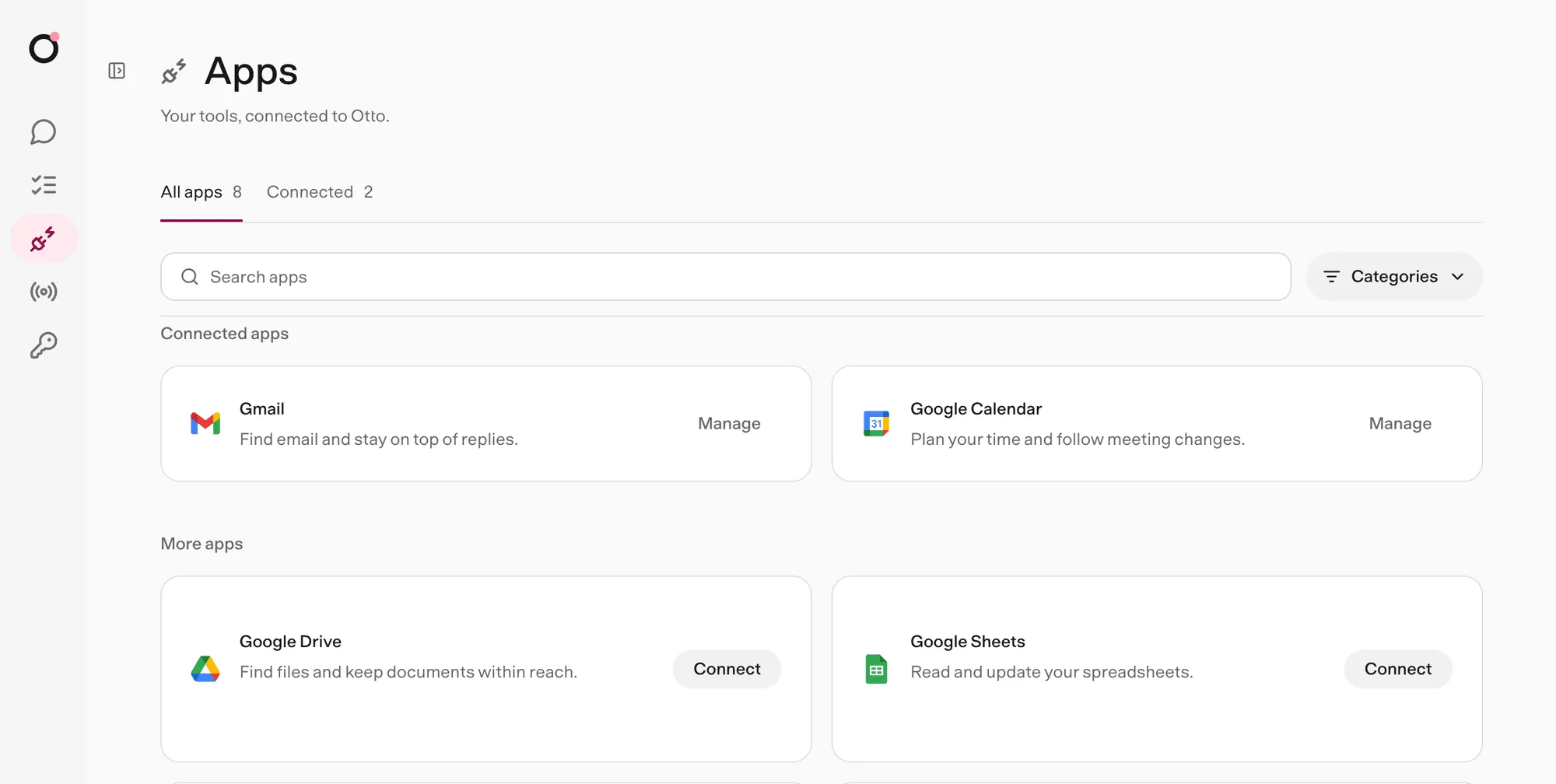
You can also ask Otto in chat. It searches the same catalog with manage_apps discover, then sends you a private link to connect.
The catalog lists Composio apps that have managed sign-in or dynamic OAuth registration. It needs Toolkits → Read. An older key without it keeps its existing connections and the featured apps.
Control what each app can access
Section titled “Control what each app can access”Two things decide what Otto can do in an app:
- The key's permissions decide what Otto can do in Composio.
- The app's consent screen decides what Otto can read or change in your account. The Composio auth config sets which scopes it asks for.
To narrow an app's scopes, change them in its auth config, then reconnect the account. Changing the key doesn't change what you agreed to on the consent screen. See Composio's Controlling scopes.
To choose an auth config, set COMPOSIO_<APP>_AUTH_CONFIG_ID in .env, where <APP> is GMAIL, CALENDAR, DRIVE, SHEETS, DOCS, SLACK or NOTION.
How Otto picks a Google auth config
When you connect Gmail, Calendar, Drive, Sheets or Docs without a setting, Otto reads your project's enabled custom OAuth2 auth configs for that app. It uses the one that's also enabled for Tool Router.
If there are several, or none of them is enabled for Tool Router, sign-in stops with a configuration error. If the project has no enabled custom OAuth2 config, Composio's default applies. A setting in .env always wins.
Every action goes through the trust check
Section titled “Every action goes through the trust check”Reads and changes to your own data run directly. An action that reaches other people or deletes data runs directly only when it matches your request. Otherwise Otto asks you first. See Approvals and the trust check.